Troubleshooting
Common Issues When Using Obriy#
Startup Error#
Error Mentioning D3D11/D3D11RHI#
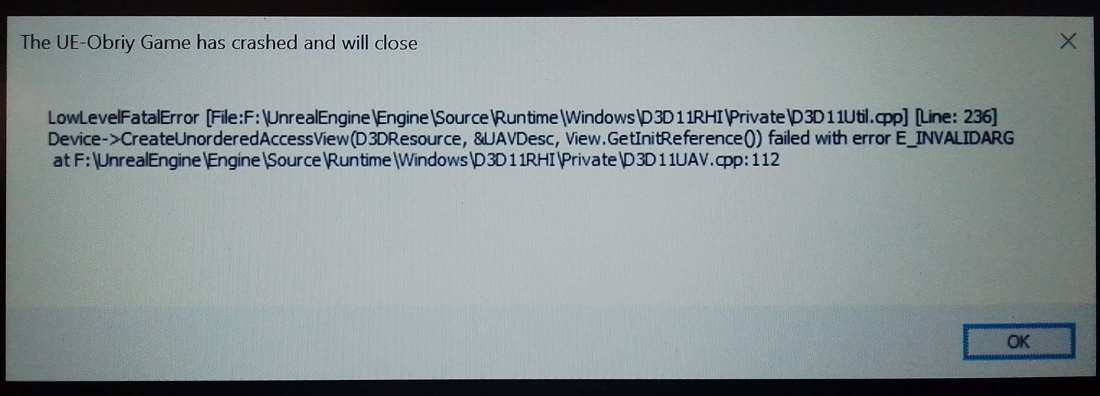
Unfortunately, your graphics card may not support the required technologies.
You need at least a 2017 graphics card. Newer integrated graphics also work, but they are slow and can't fully support physics simulation. Please check our "System Requirements" in the main section of the documentation.
Error Mentioning VCRUNTIME#
The error message may look like this:
The code execution cannot proceed because the system could not find VCRUNTIME140_1.dll ...
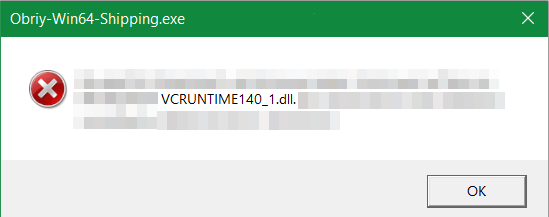
The Obriy launcher failed to properly install the required libraries. You need to manually download and install the latest version of Microsoft Visual C++ Runtime from the official Microsoft website using this link: https://aka.ms/vs/17/release/vc_redist.x64.exe.
It’s recommended to restart your computer after installation.
Main Menu Buttons Are Unresponsive#
This can happen when the simulator starts. Press the Windows key on your keyboard twice, or switch to another application window and back.
Controller Not Working#
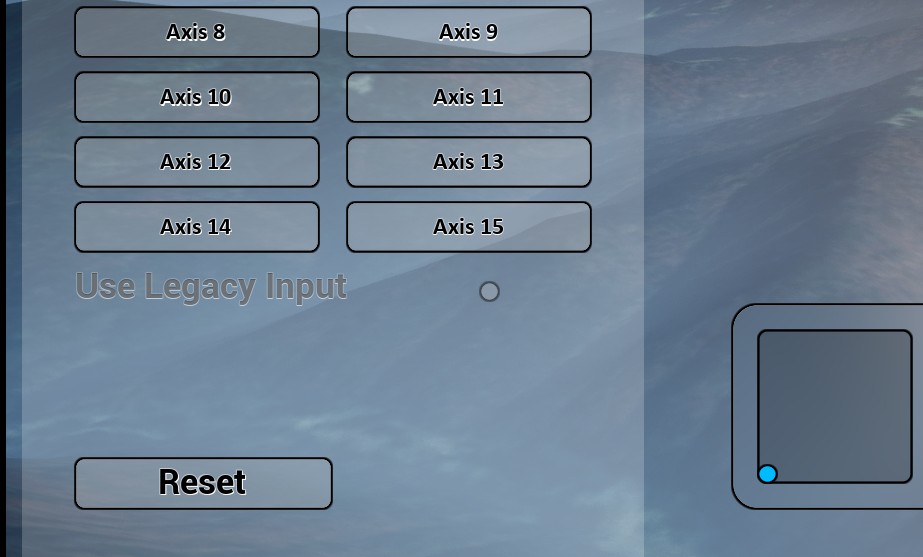
The joystick connects automatically, but there is a Reset button that re-scans for the controller. You can also try enabling Legacy input, which is an alternative way to read the controller and works better with some models.
Error When Launching a Map in Simulation Mode#
Fatal Error Right After Launching a Map#
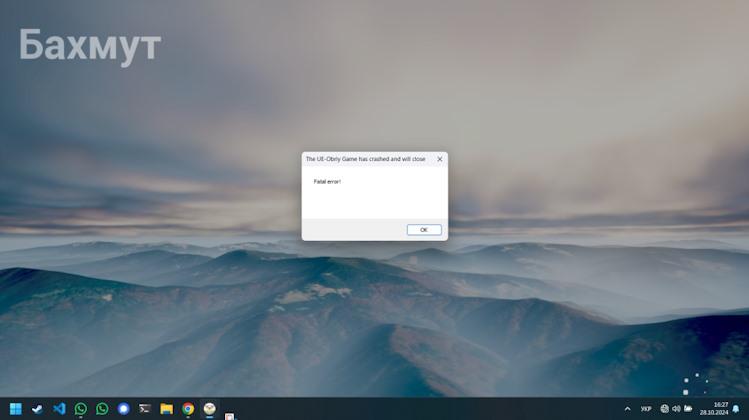
Possible causes:
-
The Visual C++ Runtime library is installed but is an older version than required.
Installing the latest VC Runtime from Microsoft may help. See above "Error Mentioning VCRUNTIME". While not guaranteed, this solution often helps. An indicator is that the error appears immediately after pressing Start.
-
The graphics card lacks performance
Try setting the graphics to the lowest possible settings and trying again. Then gradually increase the settings to find the highest quality your computer can support. This error may not appear immediately but after a few seconds or minutes of flight.
If using a laptop, make sure it is plugged into power — otherwise it will conserve resources and prevent the simulator from running at full capacity. Sometimes the laptop battery may not be able to deliver the required power, which can cause errors during startup and flight.
The recommended approach for tuning graphics settings is to increase them incrementally, ensuring the simulator remains stable after each adjustment:
- Set all options to minimum.
- Enable vegetation rendering.
- Enable shadows and increase texture quality.
- Gradually push the view distance toward maximum.
- Continue raising texture and shadow quality to the desired level.
Error While Downloading Maps#
Map downloads to 100%, but then#
restarts the download#
throws an error or crashes with a Fatal Error#
The directory where Obriy was unpacked may not have write permissions for your user (Windows).
For example, if you unpacked Obriy to the C: drive or to C:\Program Files.
Try unpacking Obriy into a folder where your user has write access. You can also go into the folder properties and grant write permissions to your user.
Also, check if you have enough free disk space.
Download Halts at 0% and Throws an Error After a Few Minutes#
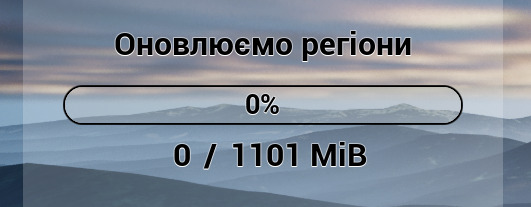
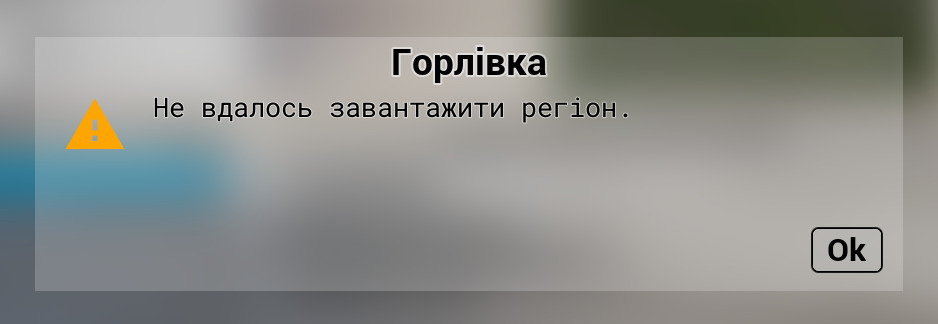
This often happens due to network access issues. See the Network Access Issues section.
Error During License Activation#
No Internet Access#
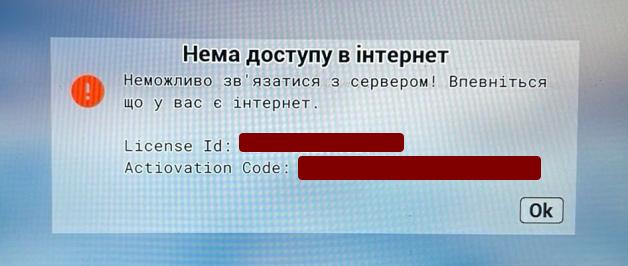
This often happens due to network access issues. See the Network Access Issues section.
Network Access Issues#
Most commonly, the cause is that Windows blocks internet access for an unknown application, or prevents programmatic DNS resolution for domains not yet present in the cache. This is especially common on computers that have not been actively used on the internet before. To resolve the issue:
- Open PowerShell as administrator.
- Run the following commands:
Resolve-DnsName s3.eu-central-1.amazonaws.com
Resolve-DnsName stats.obriy.app
Resolve-DnsName maps.obriy.app
Resolve-DnsName mp.obriy.app
Invoke-WebRequest https://s3.eu-central-1.amazonaws.com/
Invoke-WebRequest https://stats.obriy.app - If the last two commands return a
404error — that is completely normal. - Restart your computer.
The Invoke-WebRequest commands perform a regular HTTP request to the site, the same way a browser does.
This causes Windows to consider the application trusted and allows it to reach our servers.
The Resolve-DnsName commands force DNS resolution and cache the addresses of the domains used by Obriy,
eliminating potential issues with their availability.
If the commands above did not help, check that the date and time on your computer are correct, or try opening https://s3.eu-central-1.amazonaws.com/ in a web browser.